
How to Share Files Securely with SharePoint [Best Practices]
![How to Share Files Securely with SharePoint [Best Practices]](https://foyercus.blob.core.windows.net/287a2408185e68c371c/blog/768/c/2cd3823e-c846-4bc4-ba7e-94693ee03150.jpg)

SharePoint is excellent at what it was built for: internal collaboration within your Microsoft 365 tenant. Your team can create sites, share documents, co-author in real time, and manage permissions. It's deeply integrated with Teams, OneDrive, and the rest of the Microsoft stack. If your organization is on Microsoft 365, you're already using it.
But there's a common scenario where SharePoint starts to show its limitations: sharing files securely with people outside your organization. Specifically, with clients.
If you're considering using SharePoint for secure file sharing with external parties, here's what you need to know about how it works, where it falls short, and what the alternatives look like.
How SharePoint External Sharing Actually Works
SharePoint supports external sharing through Microsoft Entra B2B (formerly Azure AD B2B). When you share a file or site with an external user, a guest account is created in your Microsoft Entra directory. The external user authenticates via one-time passcode, Microsoft account, or their own organization's identity, and then they get access to the specific file, folder, or site you shared.
This is configured at two levels: the organization level and the site level. The most restrictive setting always wins. So even if your organization allows external sharing, individual sites can be locked down.
SharePoint offers four sharing levels, from most to least permissive:
- Anyone - anonymous links, no sign-in required
- New and existing guests - requires authentication via Entra B2B
- Existing guests only - only guests already in your directory
- Only people in your organization - no external sharing
Most security-conscious organizations use option 2 or 3, which means every external client needs to be invited and added to your directory as a guest.
What External Guests Can and Can't Do
External guests in SharePoint don't require their own Microsoft 365 license for basic access. They authenticate through Entra B2B, and Microsoft provides a free tier of 50,000 monthly active users for B2B collaboration.
But "basic access" really means basic. From Microsoft's documentation: "Because these guests don't have a license in your organization, they are limited to basic collaboration tasks." They can view and edit documents in the browser via Office for the web, and they can interact with lists and libraries. That's about it. They can't install desktop Office apps, they don't get OneDrive storage, and they can't create sites.
If you need guests to do anything beyond viewing and editing documents in a browser - like running Power Automate flows, using desktop apps, or accessing Teams features beyond basic messaging - you need to assign them an actual Microsoft 365 license.
The Real Cost of Using SharePoint for Clients
Here's where the cost conversation gets interesting. The base licensing for guests might be "free," but the real costs show up in other places.
IT admin time. Every external client becomes a guest in your Entra directory. Someone has to create per-client sites or libraries, manage permissions, run access reviews to clean up stale guests, and configure Conditional Access policies that properly handle external identities. For a firm with 200 staff and 2,000 clients, this is a significant ongoing cost in IT headcount.
Power Pages licensing. If you want to give clients an actual portal experience (branded login, custom forms, structured workflows) rather than raw SharePoint links, Microsoft's answer is Power Pages. That costs $200/month per 100 authenticated users. For 500 clients, you're looking at $1,000/month just for the portal layer on top of your existing Microsoft 365 licensing (pricing information from June 2026). And Power Pages isn't something you just turn on - it requires real development effort to configure. You need to connect it to Dataverse, build custom forms, configure authentication providers, and design pages in a no-code/low-code editor that has a significant learning curve. We wrote a full walkthrough of building a SharePoint client portal with Power Pages and even the basic setup takes meaningful time and expertise.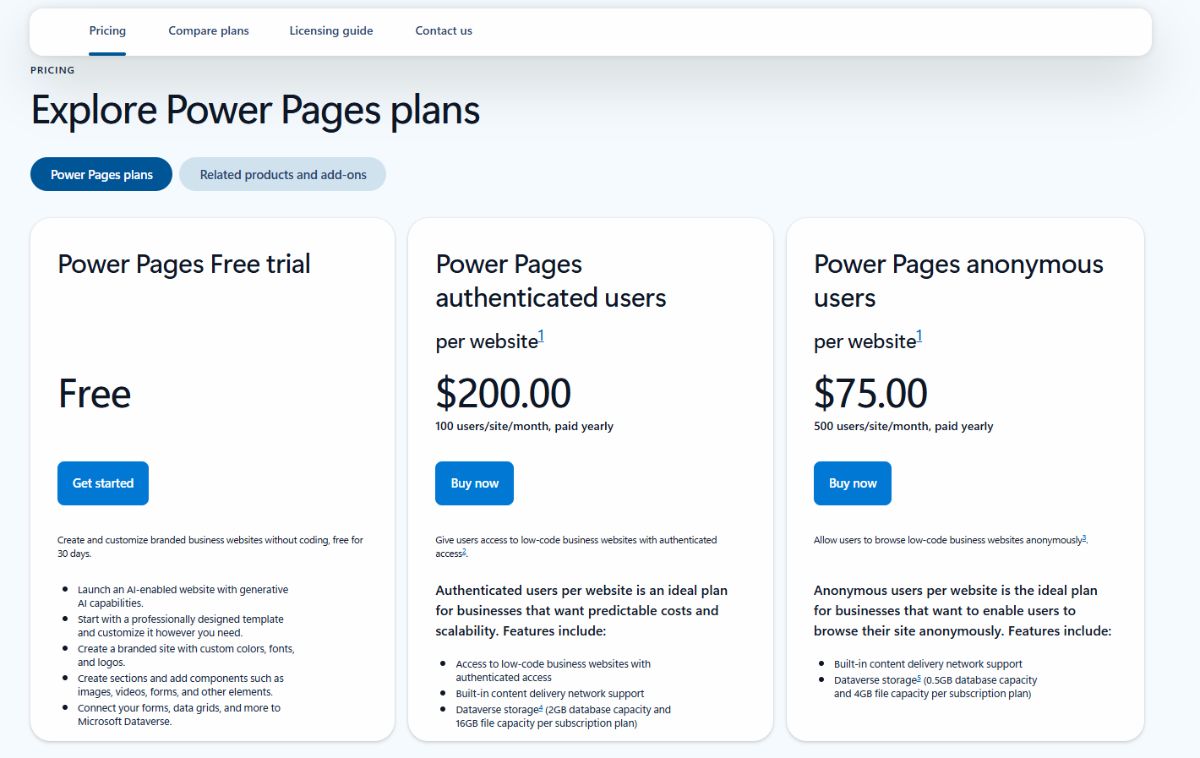
Guest licenses for fuller access. If clients need capabilities beyond browser-based document viewing, each guest needs a Microsoft 365 license assigned to them. At that point you're paying per-client licensing on top of per-staff licensing.
Compare that to a dedicated client portal like Foyer. Foyer charges per internal user ($19-59/month depending on plan), and client accounts don't require additional licenses. A 10-person firm on the Ultimate plan gets up to 5,000 client accounts included. Enterprise plans have no client limit. You're paying for your staff seats, not for every client who needs to access a file. No guest accounts in your directory. No Power Pages licensing. No IT time spent managing per-client SharePoint sites.
What the Client Experience Looks Like
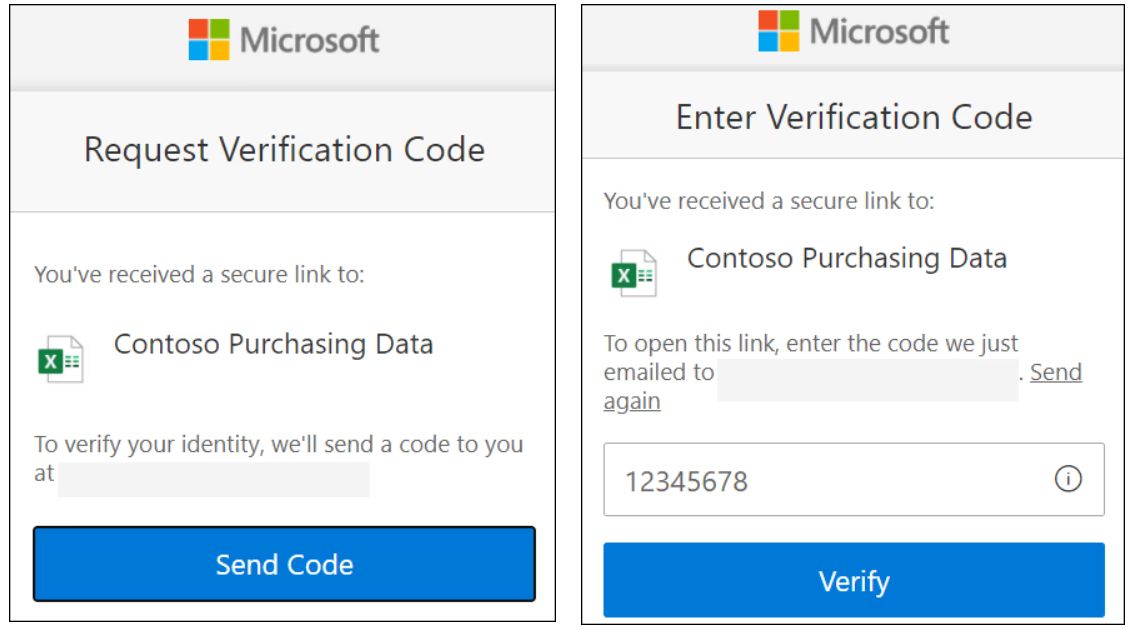
When a client receives a shared file from SharePoint, they get an email with a link, click it, verify their identity with a one-time passcode, and land on a SharePoint page. They see the file or folder you shared, with your organization's generic SharePoint branding.
There's no unified "portal" experience. There's no messaging. There's no easy way for the client to upload files back to you without you configuring specific upload permissions. There's no branded login page with your company's logo and colors. It's your internal collaboration tool with a guest pass.
For clients who aren't technical or who don't have a Microsoft account, this is confusing. They don't understand what SharePoint is. They just want to see their files.
Managing Permissions in SharePoint is a Burden
One of the most common requirements in professional services is simple: "I need each client to upload files to us, but clients should not be able to see each other's files."
In SharePoint, the correct way to do this is not to use folders with unique permissions (that breaks SharePoint's permission inheritance model and leads to performance issues). The recommended approach is to create separate sites or document libraries per client, each with their own permission groups. For a firm with 500 clients, that's 500 sites or libraries, each individually permissioned.
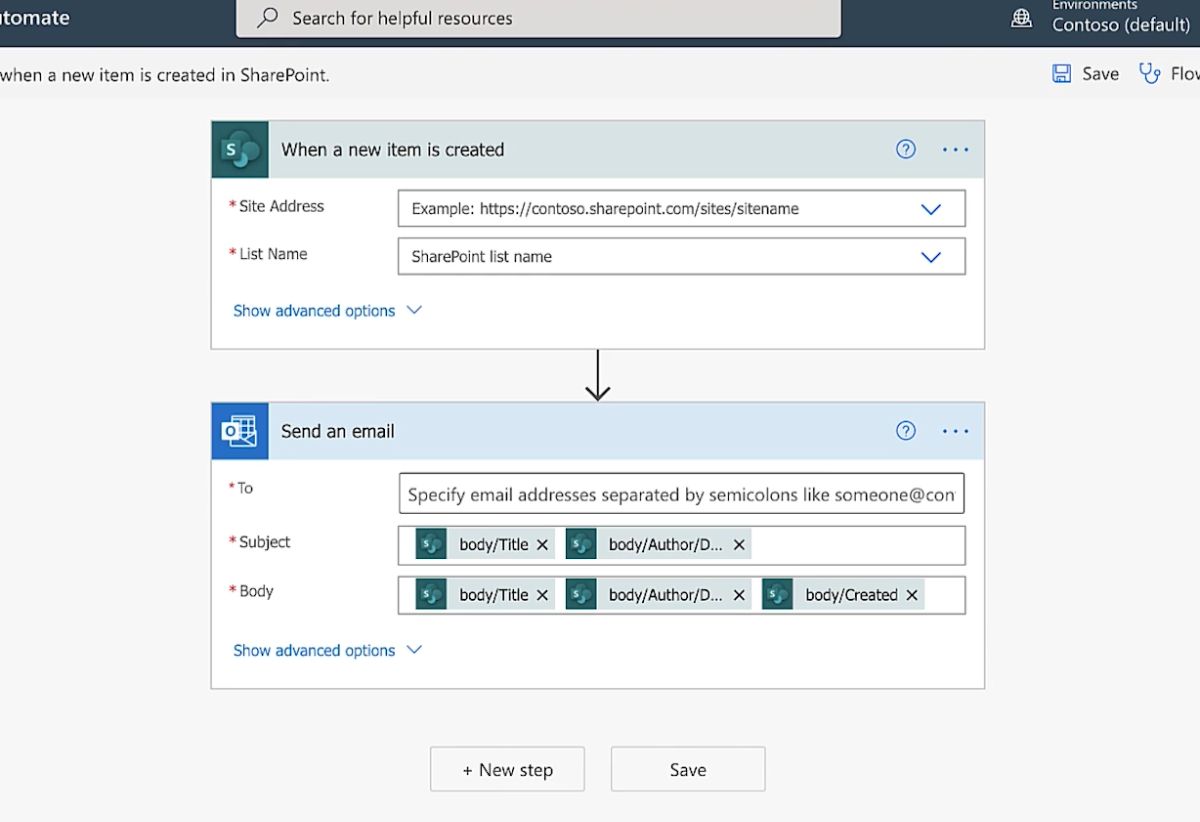
If you want clients to upload files to you and you need to ensure one client can't see what another one uploaded, you need Power Automate workflows to move files into internal-only locations after upload. This is just to achieve basic client-to-firm file transfer without accidental cross-client exposure.
This architecture works if you have the SharePoint expertise to build it and the staffing to maintain it. But if anyone makes a single permissions mistake on one library, one client could see another client's documents. And the blast radius of that mistake grows with every client you add.
Is SharePoint Secure for File Sharing?
Yes. SharePoint's underlying security is strong. Files are encrypted at rest and in transit. You get audit logs, sensitivity labels, DLP policies, and conditional access. For internal use, it's genuinely enterprise-grade.
The problem with external sharing isn't the infrastructure security. It's whether you can maintain that security posture at scale when your directory is full of guest accounts that may or may not still need access, shared links from years ago are still floating around in email threads, and permission inheritance across nested sites is producing access you didn't intend.
The most common issues are operational: clients seeing each other's documents due to permission misconfiguration, stale guest accounts that were never deprovisioned after an engagement ended, "Anyone" links created for convenience and never revoked, and permission sprawl across dozens of sites with no centralized view.
When SharePoint External Sharing Makes Sense
SharePoint external sharing is the right choice when you need to collaborate on a specific document with an external person, when the relationship is temporary (a project, a review cycle), when your external users are already on Microsoft 365 and understand SharePoint, or when you have a small number of external collaborators. If you're sharing with under 50 external people and someone on your team can manage their access, it works fine.
When You Should Look Beyond SharePoint
If you have hundreds or thousands of clients who each need ongoing access to their own documents, if you want a branded experience that looks like your company, if your clients need to upload files to you without requiring Power Automate workflows to keep things isolated, if you need real-time messaging alongside file sharing, or if you simply don't want to maintain per-client SharePoint sites for the rest of your life - you need a client portal that integrates with your Microsoft tech stack.
How Foyer Handles Secure File Sharing
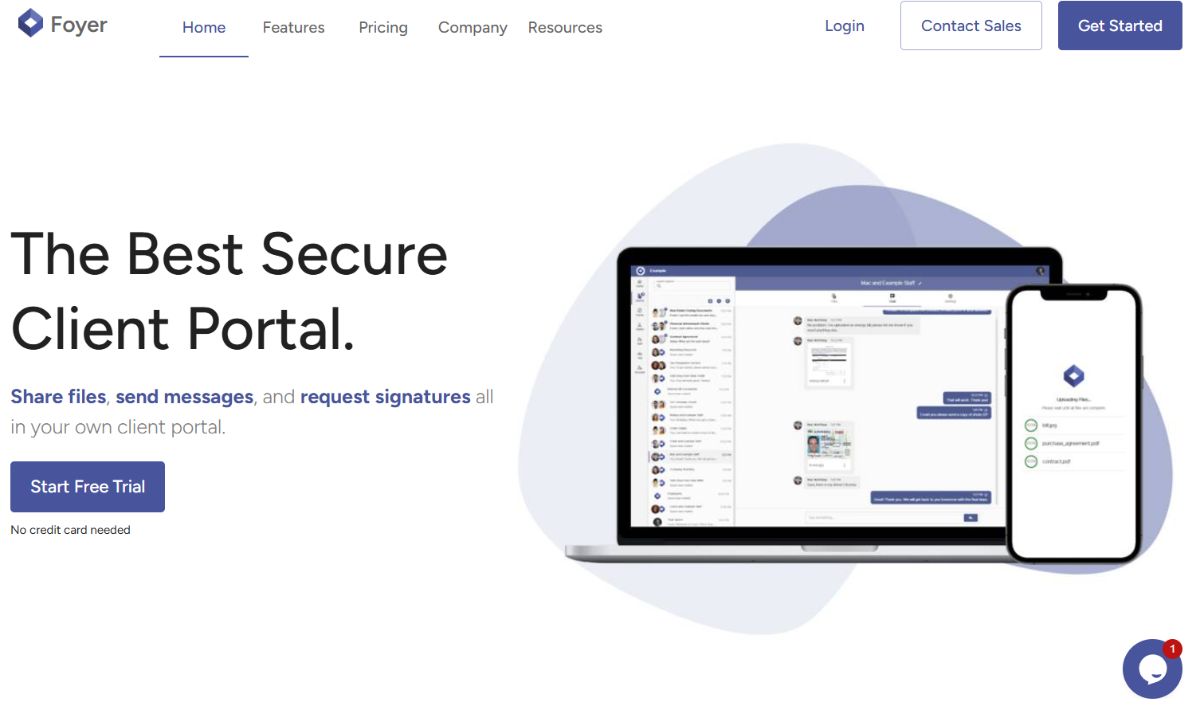
Foyer is a secure client portal built for this use case. Instead of adding clients as guests to your Microsoft directory, each client gets their own account in your branded portal. Clients log in, see their files and messages, and interact with your team. Your staff log in via SSO through your existing identity provider.
For your team, staff authenticate via SAML Single Sign-On through Microsoft Entra ID. Same credentials, no extra passwords. Your existing Conditional Access policies and MFA apply. All files are encrypted end-to-end and at rest. Full audit logging of every file access, download, and message. No guest accounts polluting your Entra directory. One admin console to manage all client access.
For your clients, they get a branded login portal with your logo and colors, optionally on your own custom domain like portal.yourfirm.com. Each client's space is completely isolated by default - no per-client configuration needed. They can drag-and-drop files to upload, exchange real-time messages with your team, and access everything from any device. You can also use Safe Drop to let anyone send you files without even needing an account.
The full feature set includes secure file sharing with folders, real-time encrypted messaging, DocuSign integration for e-signatures, custom intake forms, Foyer Pages for shareable knowledge bases, Microsoft Outlook integration for encrypted email, SAML SSO via Entra ID (or Okta or Google Workspace), data residency options (US, EU, AU), and a REST API for custom automation.
How Foyer Works with Your Microsoft Stack
Foyer doesn't replace your Microsoft stack. Your team keeps using Microsoft 365 for internal work. Foyer handles the client-facing layer.
Entra ID SSO means your staff sign in to Foyer with their existing Microsoft credentials. You can enforce SSO so that password login is disabled entirely for staff - only Entra-authenticated users get in.
The Outlook add-in lets staff send end-to-end encrypted messages from Outlook. Your staff stay in Outlook, clients receive the messages in the portal.
Power BI Embedded lets you surface Power BI reports directly in the client portal with per-user access control. Each client sees only their dashboards without needing a Power BI license or a guest account.
Microsoft for internal productivity. Foyer for secure external collaboration. Your staff use SSO to move between them without friction.
Share Files Securely with Foyer
If you're hitting the limitations of SharePoint external sharing, Foyer is worth a try. Setup takes just a few minutes. You can configure SSO with Entra ID, invite your first client, and be sharing files the same day.
14-day free trial, no credit card required. If you're an enterprise organization that needs custom integrations or a dedicated onboarding, contact sales.